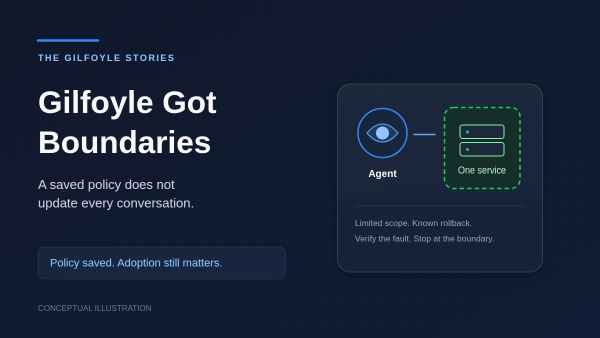
Changing my AI admin’s rules should have been straightforward: save the policy, deploy it, restart the gateway. Then I traced how an existing conversation restores its instructions: it can reuse its stored prompt instead of loading the new policy file. Apparently Gilfoyle had a way to keep outdated management instructions. Very on brand.
When I introduced Gilfoyle in April, he was an observer. He watched services, investigated alerts, and told me what broke. By October, his policy carried an Admin label. The interesting work became deciding exactly what that label allowed, then checking which conversations actually loaded those rules.
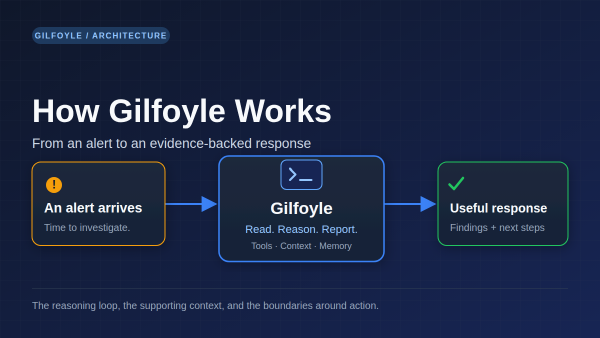
An infrastructure alert lands in Discord. Turning it into a useful response takes more than adding an LLM: something has to decide whether the message belongs in the queue, collect evidence, preserve the incident context, and know when to stop.
That is the machinery around Gilfoyle. The original introduction covered the April rollout. This is the current system, checked on October 15: how a signal reaches him, how he investigates, and which parts run without asking a model anything.
Most organizations can tell you whether their firewalls are healthy. Fewer can prove every allow rule is inspected, logged, owned, and still required.
The gap between those two things is where audits become painful. Multiple firewall admins, emergency changes at 2am, quarterly reviews that turn into archaeology digs, vendor access rules that were “temporary” in February and are still there in October. Nobody disabled them because nobody noticed they were still there. No alert fires when a rule that was supposed to be temporary quietly becomes permanent.
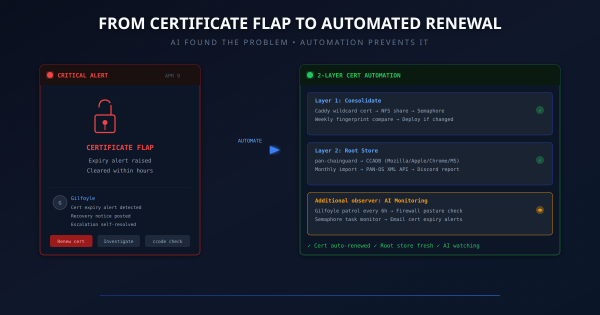
Update, October 14, 2026. This is the April certificate incident and the automation design that followed it. The monitoring schedules below describe that original setup, not a fresh verification of today’s jobs. Gilfoyle now has a Level 4 policy for bounded repairs, but the unattended controller remains inactive. A fresh Discord-route session loaded the new policy; warm sessions retained older prompts. The next chapter explains the rollout. It does not make certificate renewal an AI task.
TL;DR # A Python script that identifies every device on your network in PAN-OS traffic logs, without Active Directory. Combines Pi-hole DNS, UniFi Controller, and DHCP leases into one priority merge. 124 devices named on my PA-440.
Before:
1 2 3 192.168.10.128 → 8.8.8.8 user: unknown 192.168.30.240 → 1.1.1.1 user: unknown 172.30.50.77 → 52.26.132.60 user: unknown After:
The 2 AM Wake-Up Call # I woke up to find my CI/CD platform had been down for 8 hours. Semaphore, the Ansible automation engine that manages my entire homelab, was stuck in a crash loop:
1 2 3 /usr/local/bin/server-wrapper: line 295: syntax error: unexpected "&&" /usr/local/bin/server-wrapper: line 295: syntax error: unexpected "&&" /usr/local/bin/server-wrapper: line 295: syntax error: unexpected "&&" The same error, repeating every few seconds. The container would start, hit the broken entrypoint script, crash, and restart. Endlessly.
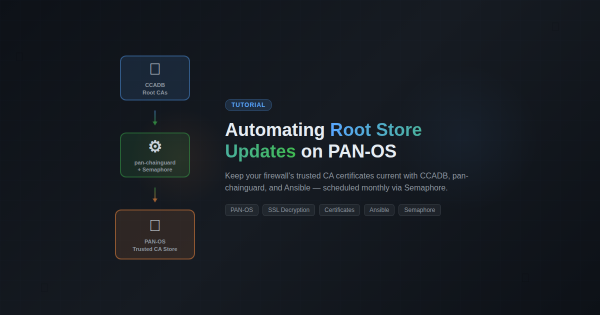
Overview # If you’re running SSL decryption on a Palo Alto firewall, you’ve probably hit this: a user reports they can’t access a website, and it turns out the site’s CA certificate isn’t in your firewall’s trusted root store. PAN-OS only updates its built-in root store on major software releases, which means between upgrades your firewall’s trust anchors slowly go stale.
Overview # DNS is the backbone of your network. When your Pi-hole goes down, every device in your home loses internet access. Websites won’t load. Apps stop working. Smart home devices go offline. It’s a single point of failure that brings everything to a halt.
This tutorial shows you how to build a resilient DNS infrastructure using two Pi-hole servers with automatic failover. If one server dies, the other seamlessly takes over in under 15 seconds — without any manual intervention.
The Challenge # I’ve been running a homelab for years, constantly deploying new services, debugging issues, and learning from mistakes. Every time I solve a particularly gnarly problem or build something interesting, I think, “I should write this up.” And then I don’t.
The friction is real. By the time I finish a project—maybe deploying Wazuh XDR or migrating from Watchtower to WUD—I’m mentally done. The last thing I want to do is sit down and reconstruct what I did, sanitize my internal network details for public consumption, and format everything into a proper blog post. The motivation is there when I’m in the middle of solving a problem, but it evaporates the moment I’m done.
Why an XDR in a Homelab? # When I first started building out my homelab infrastructure, I fell into the same trap that catches most homelab enthusiasts: I assumed that being behind a firewall made me safe. After all, I wasn’t running a Fortune 500 network. I had VLANs, I had a next-generation firewall doing deep packet inspection, and I kept my systems patched. What more did I need?